

The editor
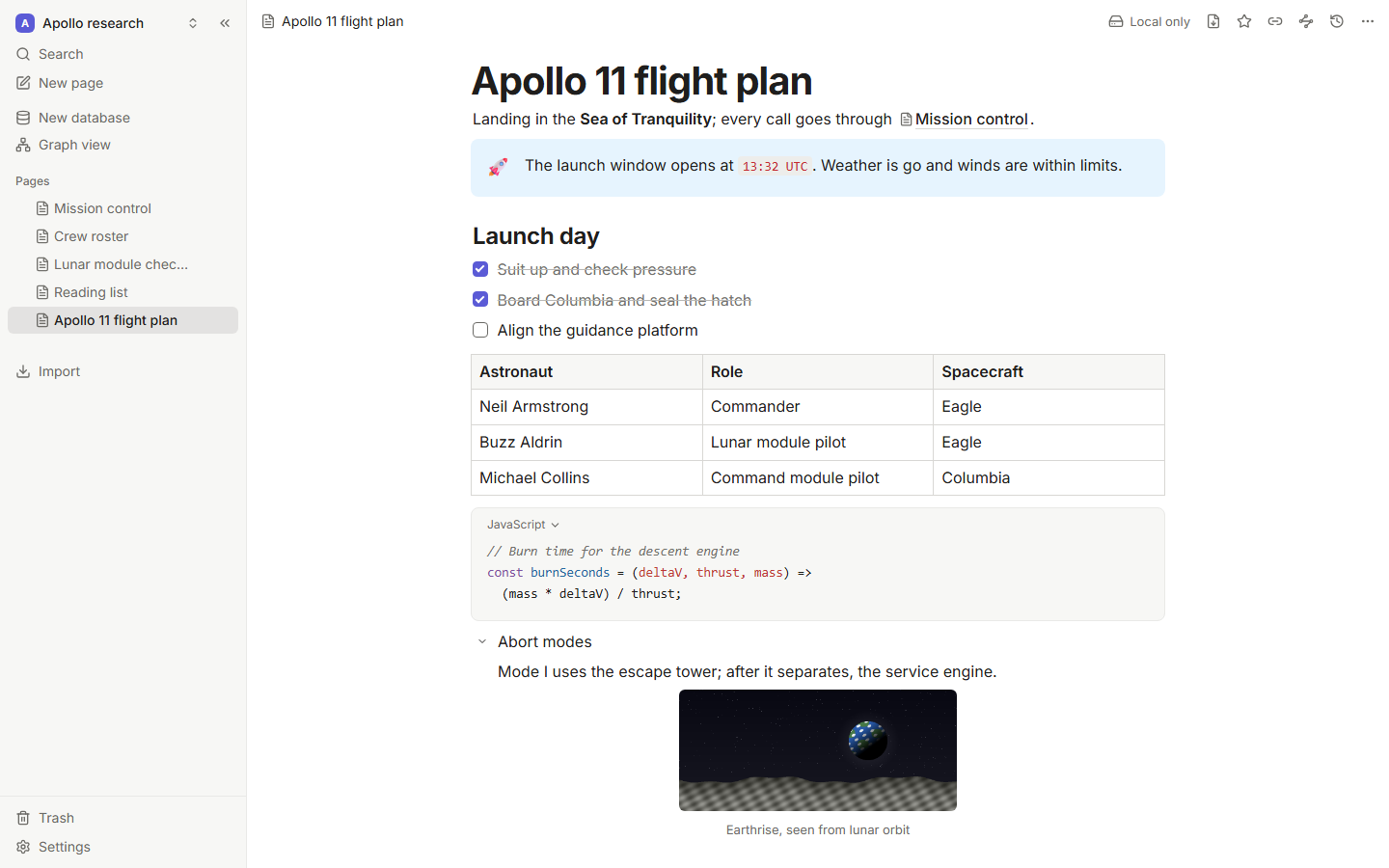
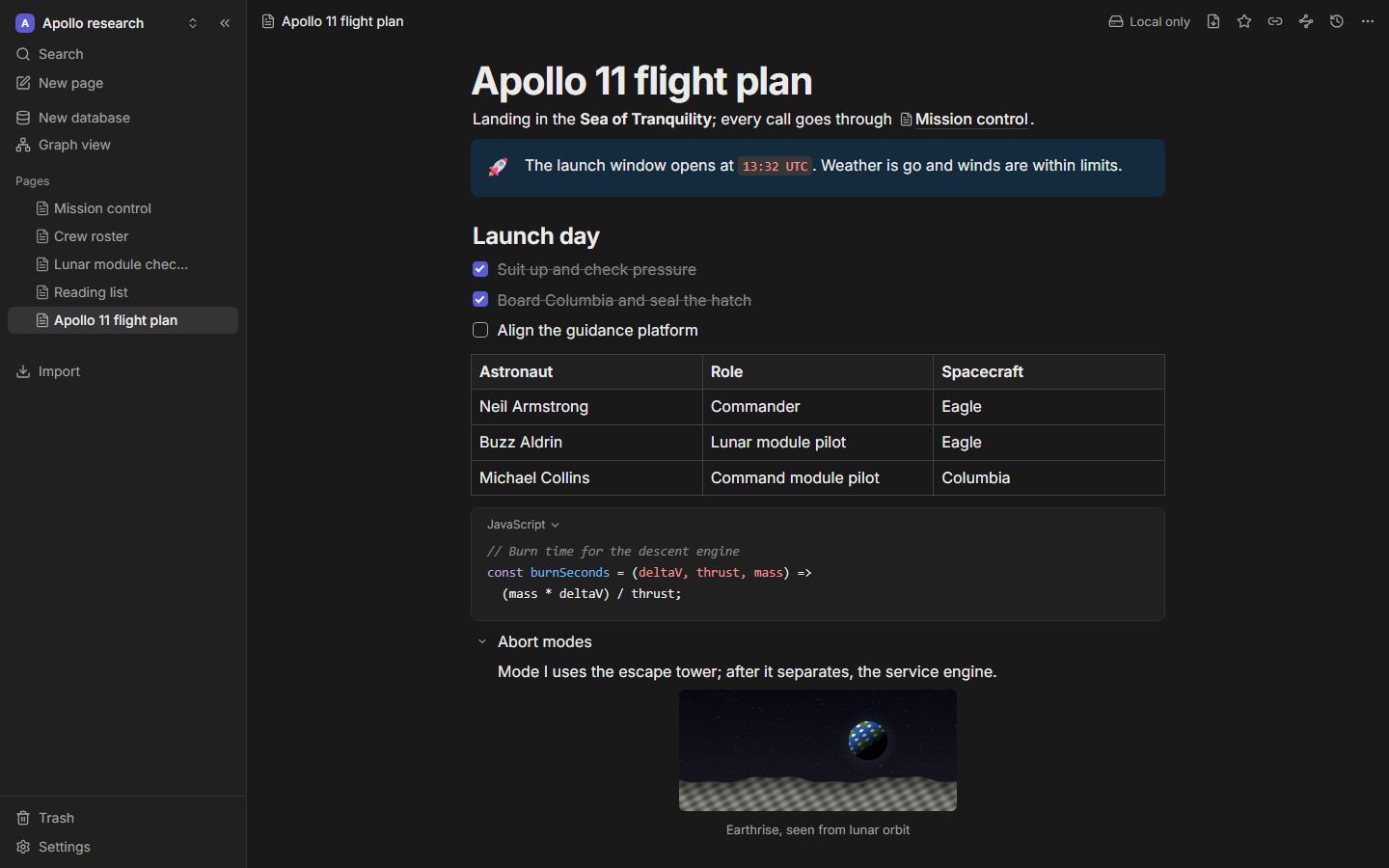
Every page is a stack of blocks: paragraphs, headings, lists, tables, callouts and more. You can write with the keyboard alone, or point and drag.
The slash menu
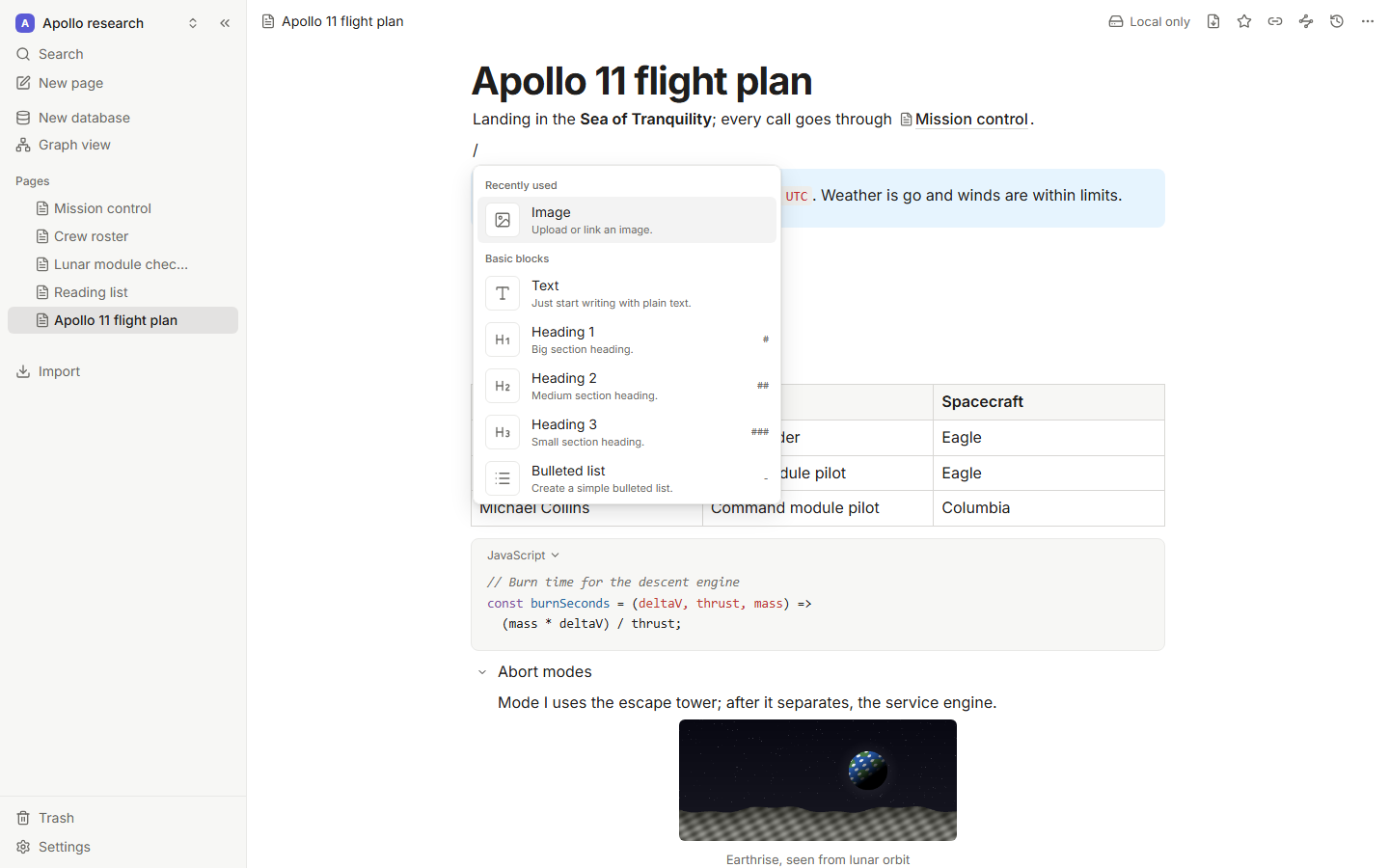
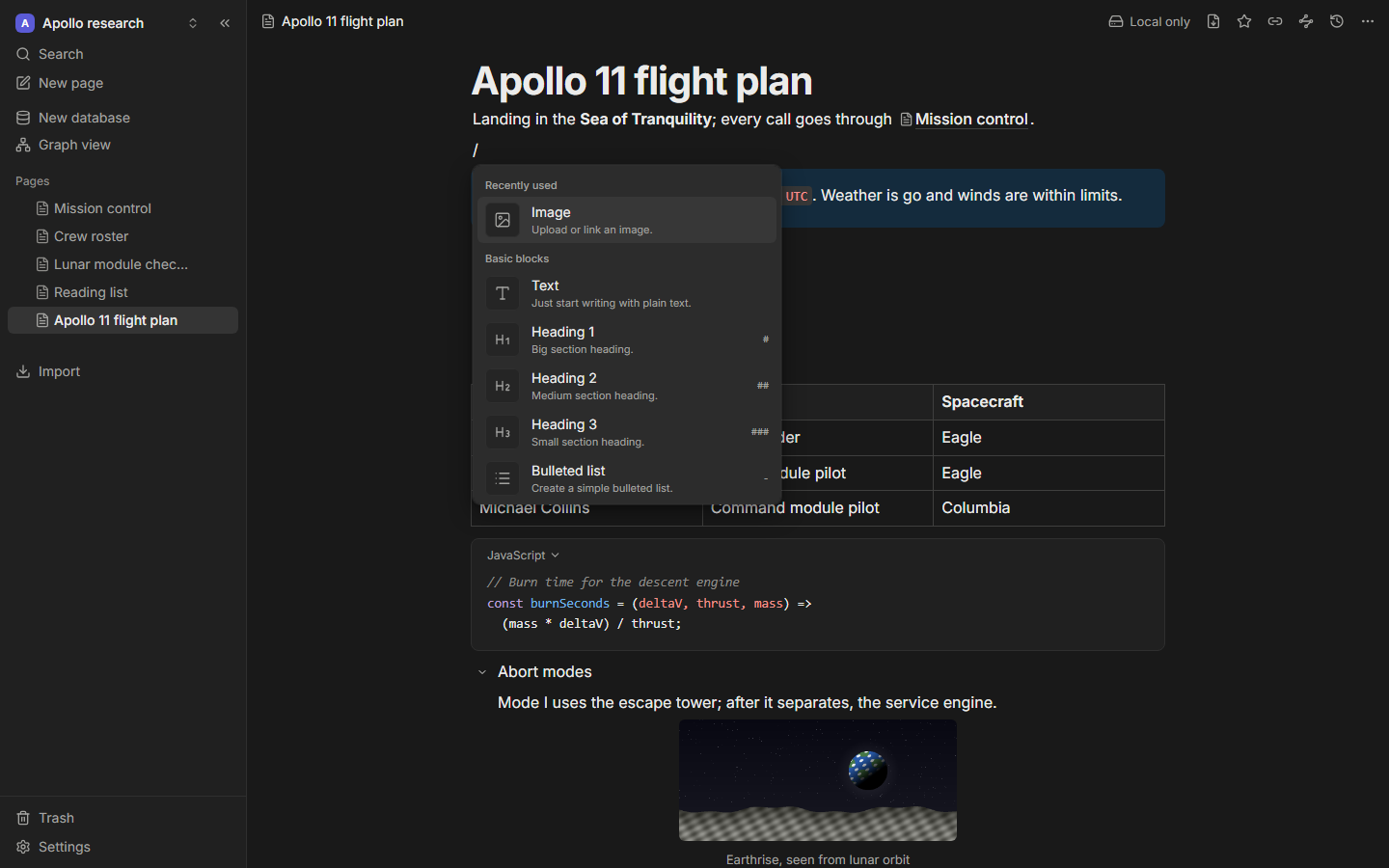
Type / at the start of a line (or after a space) to open the slash menu. Keep typing to filter, use the arrow keys to choose and press Enter. Blocks you use often move to the top. Databases and plugin blocks appear here too.
Blocks
| Block | Slash menu | Markdown shortcut | Notes |
|---|---|---|---|
| Text | /text | The default block. | |
| Heading 1–3 | /h1 /h2 /h3 | # ## ### | Headings build the page outline and can be linked to. |
| Bulleted list | /bullet | - or * | Tab and Shift+Tab nest. |
| Numbered list | /numbered | 1. | |
| To-do | /todo | [] or [x] | Click the box to check it off. |
| Quote | /quote | > | |
| Callout | /callout | Pick an emoji and a tone: info, success, warning, danger. | |
| Date | /date | Insert today’s date. | |
| Toggle | /toggle | A summary line that hides its contents. Remembers whether it's open. | |
| Code | /code | ``` | Syntax highlighting, a language picker and a copy button. |
| Divider | /divider | --- | |
| Link to page | /link | [[ | Link to another page in this workspace. |
| Table | /table | Pick a size; add rows and columns; toggle the header row; Tab moves between cells. | |
| Image | /image | Paste, drop or upload. Resize by dragging; add alt text. | |
| Embed | /embed | YouTube, Vimeo, Loom, Figma or CodePen. | |
| Bookmark | /bookmark | Save a link as a visual card. | |
| Database | /database | An inline database, or a linked view of an existing one. See Databases. |
A block that needs a plugin you don't have shows a placeholder. Nothing is lost: install the plugin and it renders again.
Formatting
Select text to show the formatting toolbar: bold, italic, underline, strikethrough, code, link, highlight and Turn into. Or type markdown as you go:
| Type | You get |
|---|---|
**bold** | bold |
*italic* | italic |
`code` | code |
~~strike~~ | |
==highlight== | a highlight |
Paste a URL over selected text to make it a link. Paste a bare URL and choose to keep it as a link, embed it or show it as a bookmark card.
Moving blocks
- Hover over a block and drag the handle (⋮⋮) on its left. Drop it between blocks, or into a list or a toggle.
- Click the handle for the block menu: turn into, duplicate, delete, copy as markdown, and color.
- From the keyboard: Esc selects the current block, the arrow keys move which block is selected, Shift+↑/↓ extend the selection, Mod+Shift+↑/↓ move the selected blocks, Mod+D duplicates them and Delete removes them.
Links and tags
- Type
[[(or@) to link a page. Pick one, or choose Create page to make it and link to it. Links can also point at a heading or a block; in markdown, that's[[Page#Heading]]. - Links show the page's current title, so renaming a page updates every link to it. Links to pages in the trash look broken until you restore them.
- Hover over a link to preview the page. Click it to open it.
- Type
#and a name to add a tag, like#readingor#projects/tessera. Click a tag to search for it.
More in Links, backlinks and the graph.
Copy and paste
Copying puts both rich text and markdown on the clipboard, so pasting into another app keeps the formatting. Pasting from Notion, Google Docs, Word or a web page produces clean blocks; pasting markdown turns it into blocks.
Page options
The page menu (⋯ in the top bar) has Add to favorites, Copy link, Duplicate and Move to trash. Full width, small text, the word and character count, and Copy page as markdown are commands in the command palette (Mod+K).
Editing together
When your workspace syncs with a server, you see other people's cursors and selections with their names and colors. Undo only undoes your own changes. See Sync and collaboration.
Shortcuts
The most common ones are below; Keyboard shortcuts has the full list.
| Action | Shortcut |
|---|---|
| Slash menu | / |
| Link a page | [[ |
| Bold, italic, underline | Mod+B, Mod+I, Mod+U |
| Undo, redo | Mod+Z, Mod+Shift+Z |
| Select the current block | Esc |
| Move blocks up or down | Mod+Shift+↑ / ↓ |
| Duplicate blocks | Mod+D |
| Back to the title | ↑ at the start of the first block |