

Import and export
Moving into Tessera takes one click, and so does moving out. Imports never touch what's already in your workspace: everything lands under one new top-level page.
Import
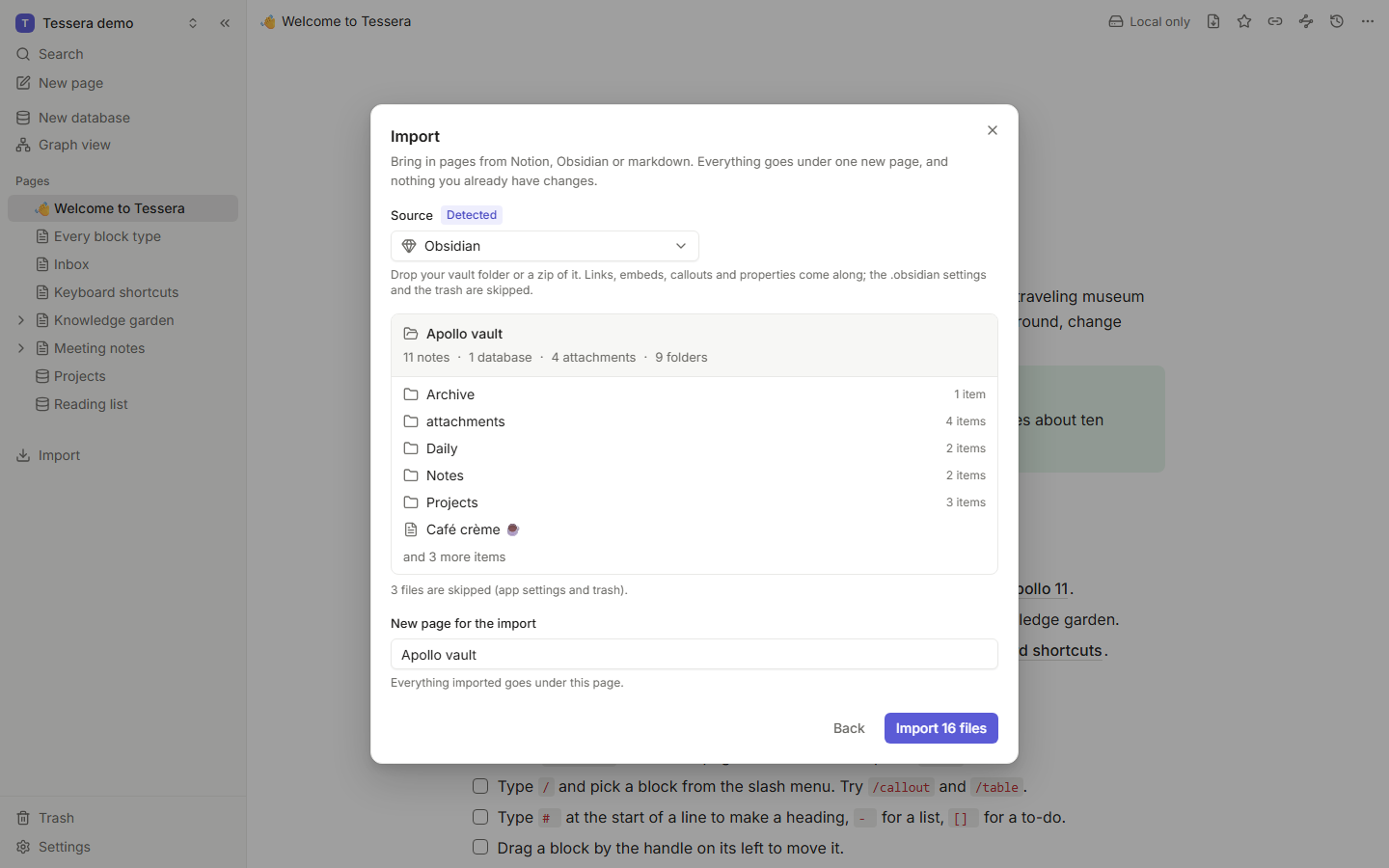
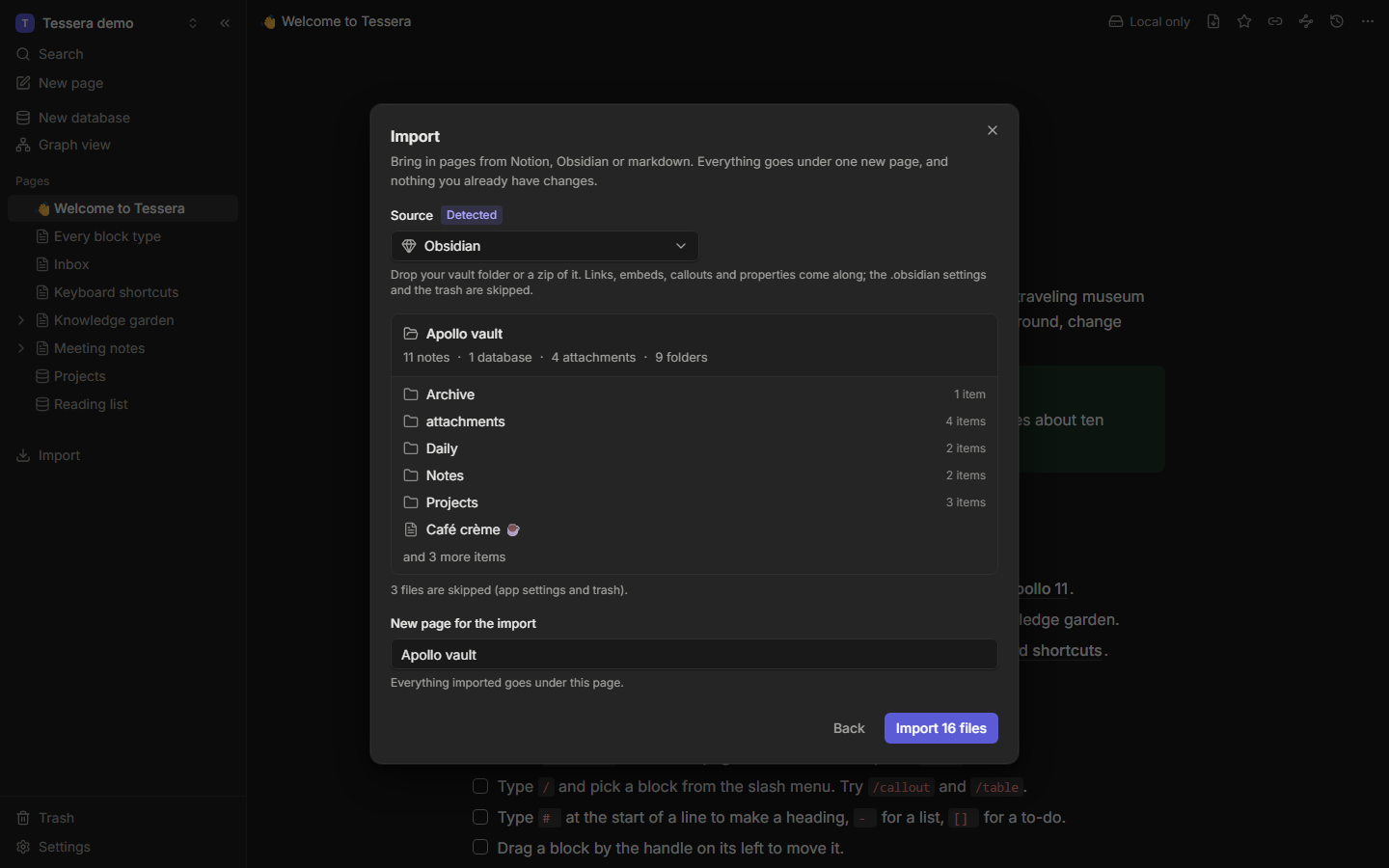
Open Import from the sidebar, the palette, or the first-run screen. Drop a zip or a folder, or pick files. Tessera detects the source, shows what it found, and imports it with a progress bar. You can cancel at any time.
From Notion
- In Notion, open Settings → Workspace → Export all workspace content (or Export on a single page).
- Choose Markdown & CSV, include subpages, and download the zip. Multi-part exports are fine.
- In Tessera, choose Import from Notion and drop the zip (or all the parts).
Tessera rebuilds the page tree, removes Notion's long IDs from names, turns CSV files into databases with typed properties, rewrites internal links, and imports images and files.
From Obsidian
Choose Import from Obsidian and pick your vault folder (or a zip of it).
- Folders become pages, and notes become pages inside them.
- Frontmatter becomes page properties;
tagsandaliaseskeep working. [[Wikilinks]],![[embeds]],#tagsand callouts (> [!note]) convert, using Obsidian's rules to resolve links. Embedded images, files and databases stay embedded; an embedded note becomes a link to it (the import report says so).- A note next to a folder of the same name (
Projects.mdandProjects/) becomes that folder's page. - Attachments are imported.
.obsidian/and.trash/are skipped.
From markdown files
Choose Import markdown for any folder of .md files. Relative links become page links, and CSV files become databases.
The import report
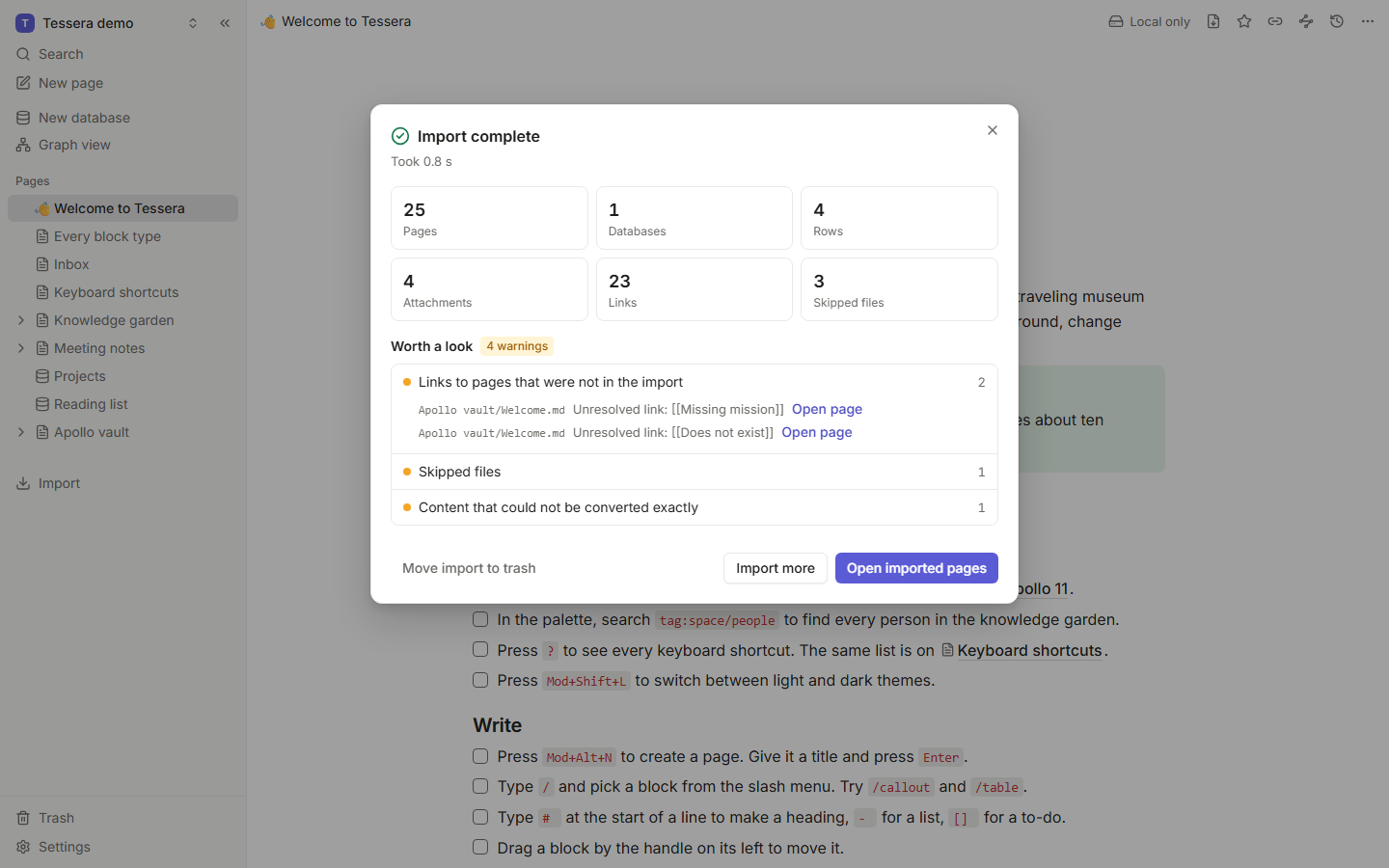
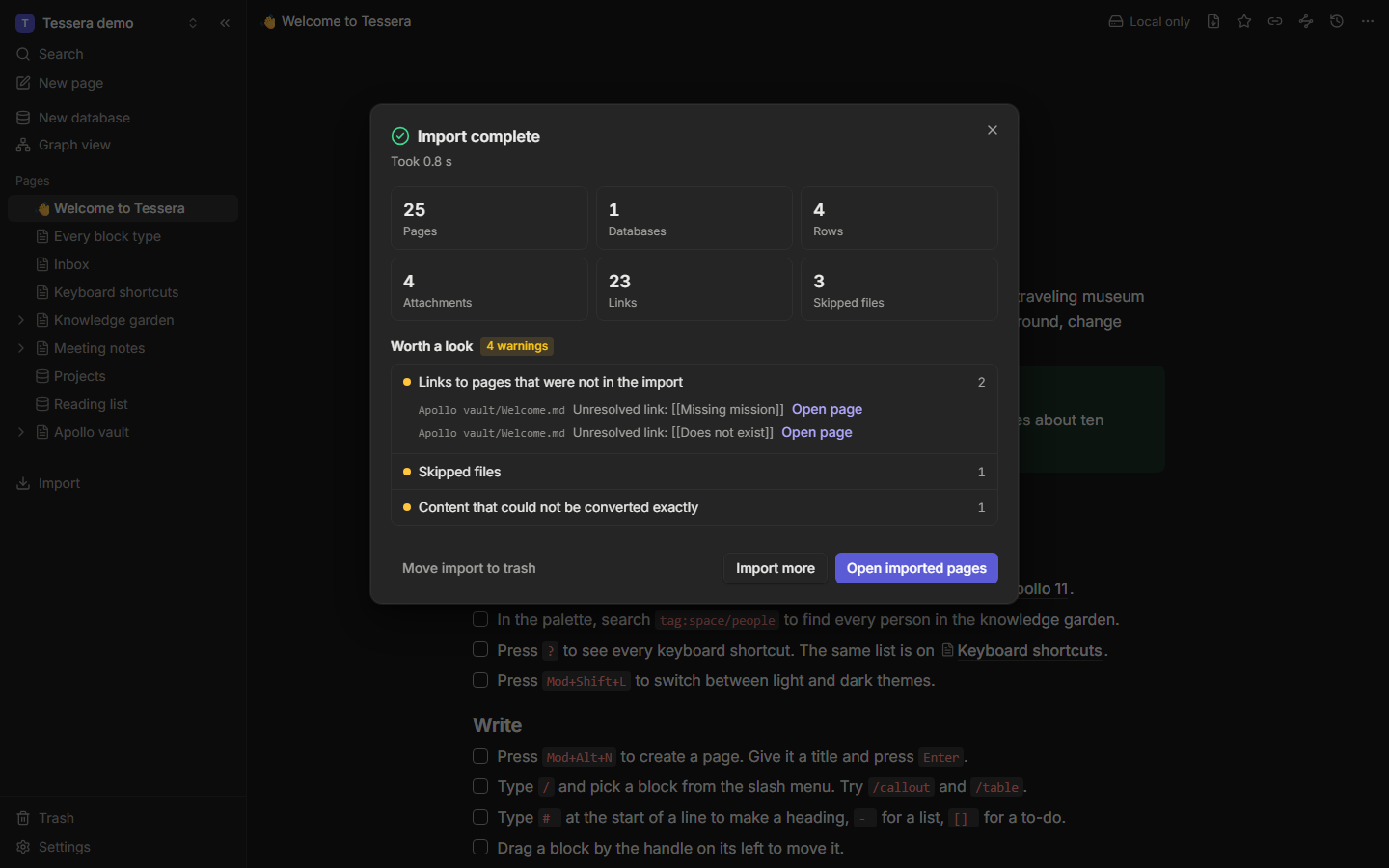
Every import ends with a report: how many pages, databases and files arrived, plus warnings (an unresolved link, an unsupported syntax, a skipped file) and errors, each linked to the page it affects.
Export
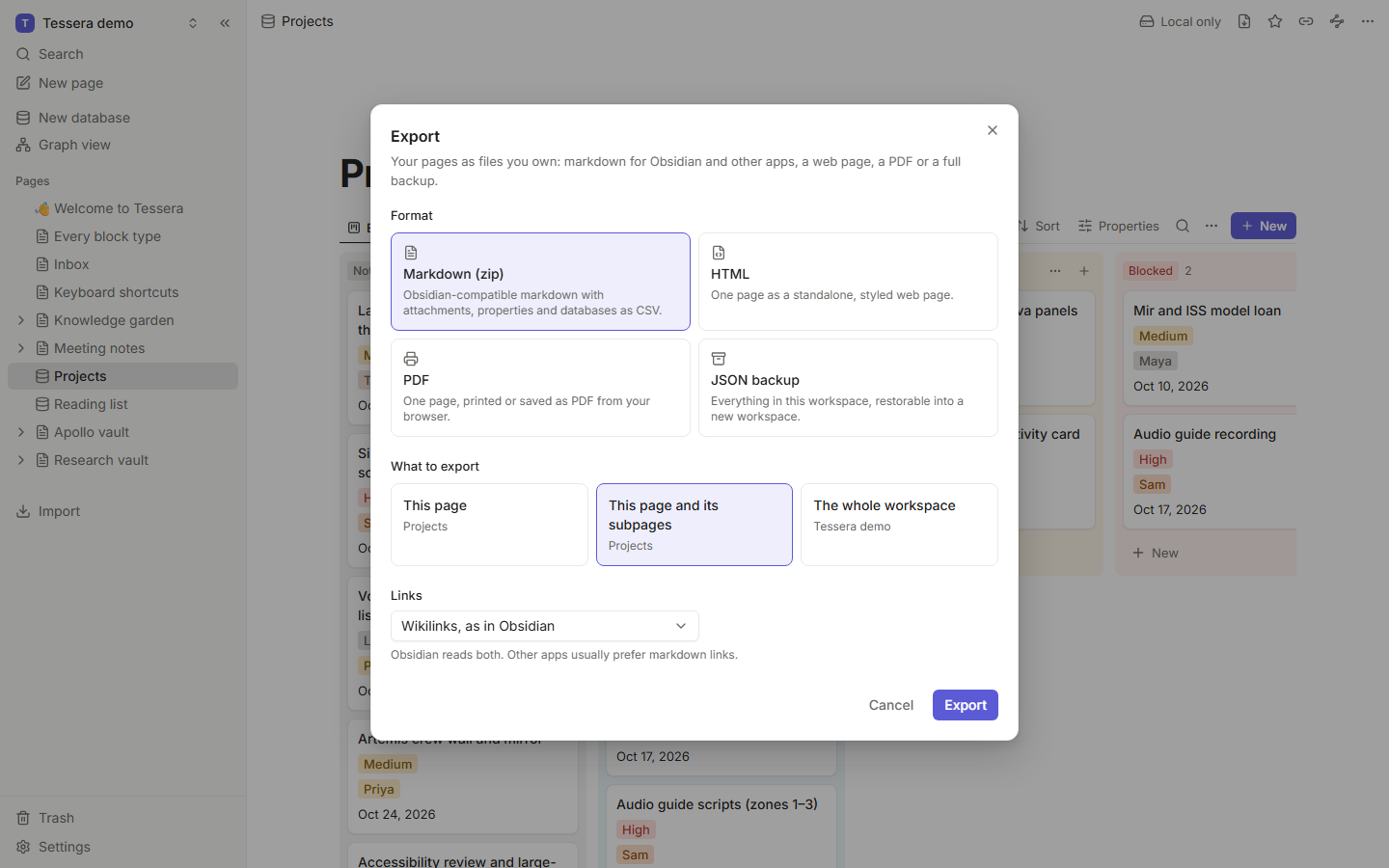
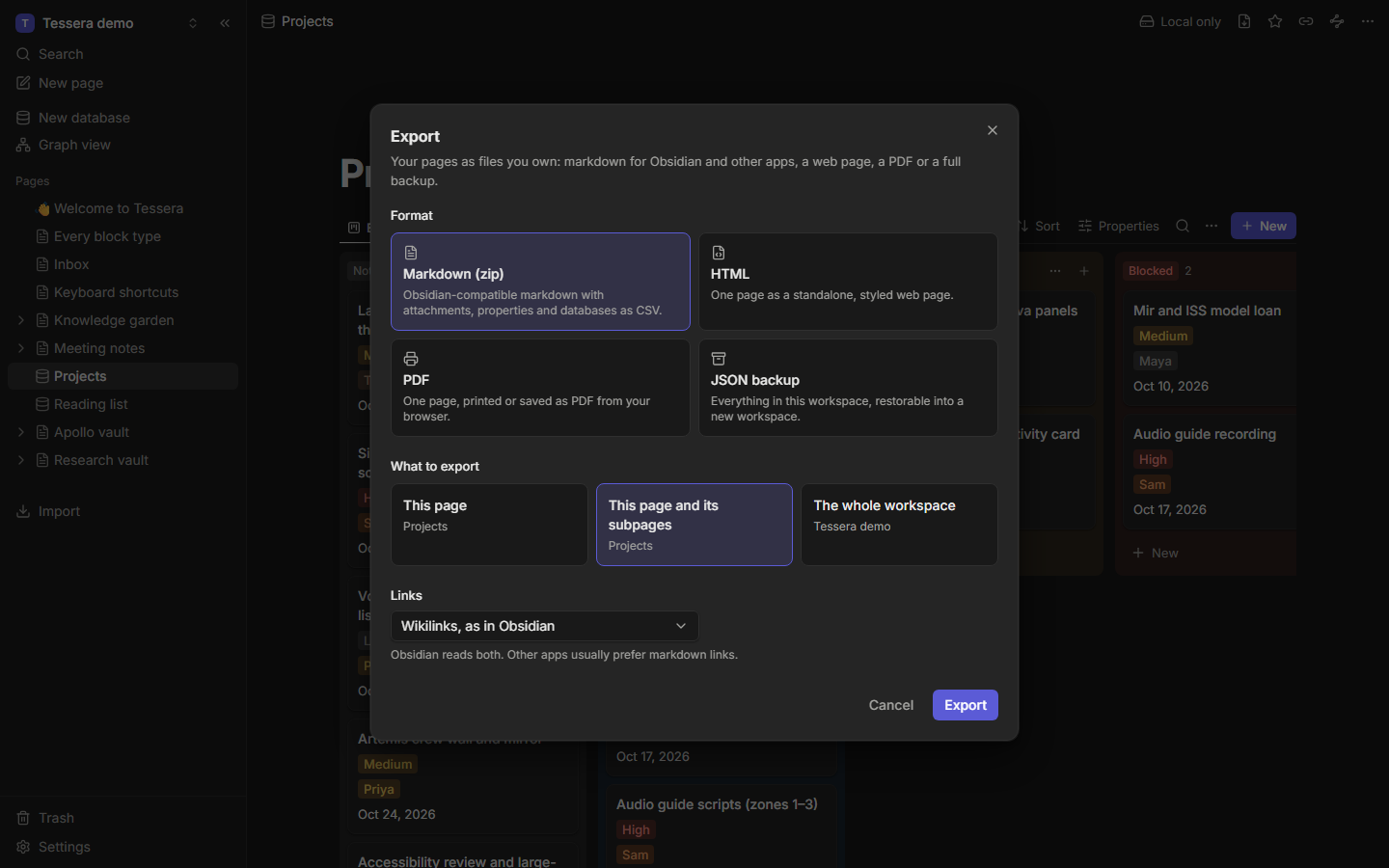
Open Export from the top bar or the palette, choose what to export and in which format.
| Format | Scope | What you get |
|---|---|---|
| Markdown (zip) | The workspace or a page tree | Obsidian-compatible markdown with frontmatter, attachments alongside, and databases as CSV plus row pages. |
| JSON backup | The workspace | Everything, exactly: all documents and files in a versioned format you can restore. |
| Markdown | One page | A single .md file. |
| HTML | One page | A standalone, styled HTML file. |
| One page | Through your system's print dialog. |
Links export as [[wikilinks]] by default; choose relative markdown links if the tool you're moving to prefers them.
In a browser the file goes to your downloads. The desktop app asks where to save it, starting in your Downloads folder, and the export window shows where it went; Save as… saves another copy. Database CSV exports and Settings → Import & export → Save backup… work the same way.
Backups
The JSON backup is the complete copy of a workspace. Restore it into a new workspace from Import. Keep one somewhere safe from time to time, even if you sync to a server.
If you run a server, back up the server too: see Backups and restore.
The desktop app can also keep a live markdown copy of each workspace in its folder. See The desktop app.