

First steps
Ten minutes from an empty screen to a small, linked workspace. Shortcuts use Mod for ⌘ on macOS and Ctrl elsewhere.
1. Create a workspace
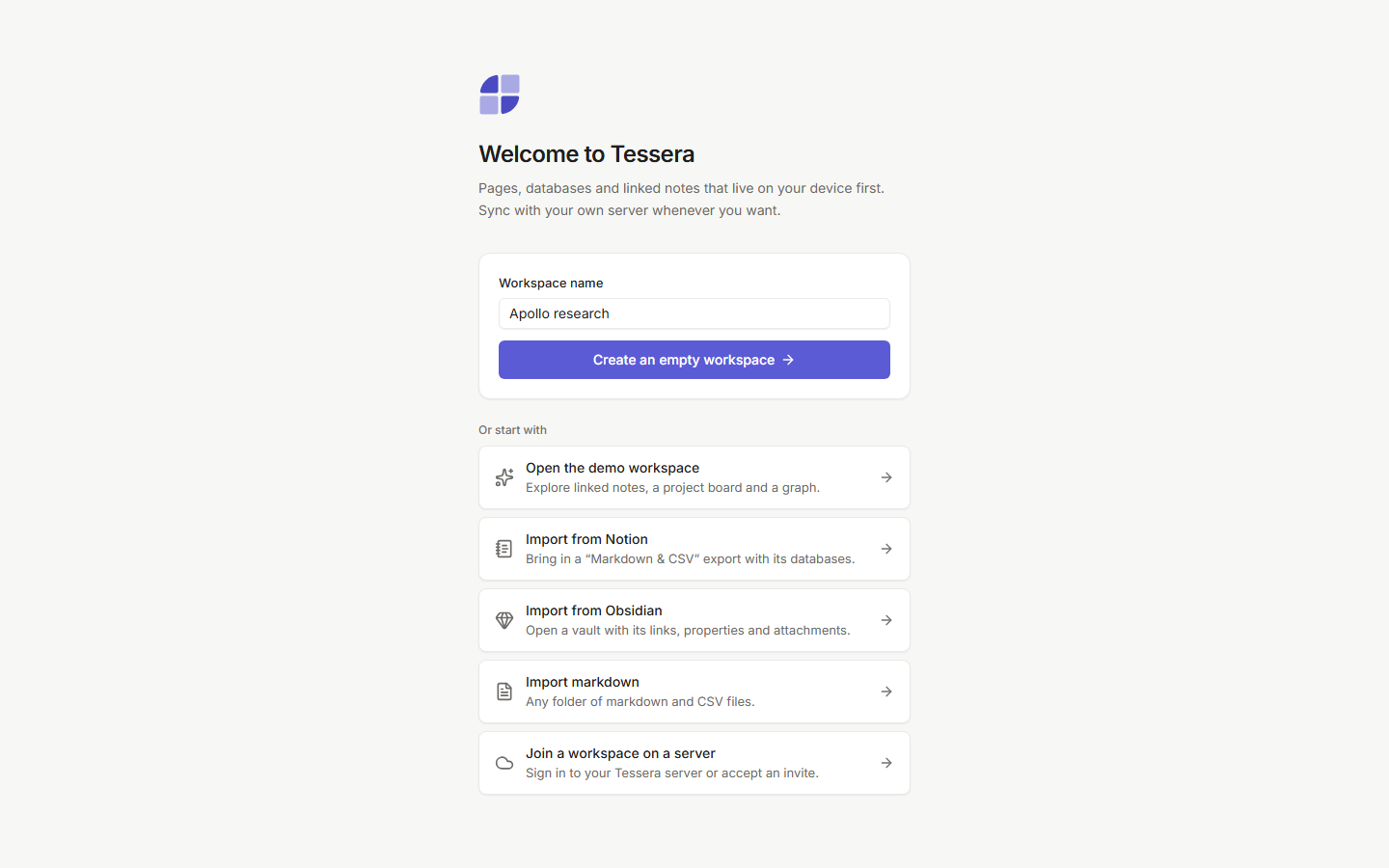
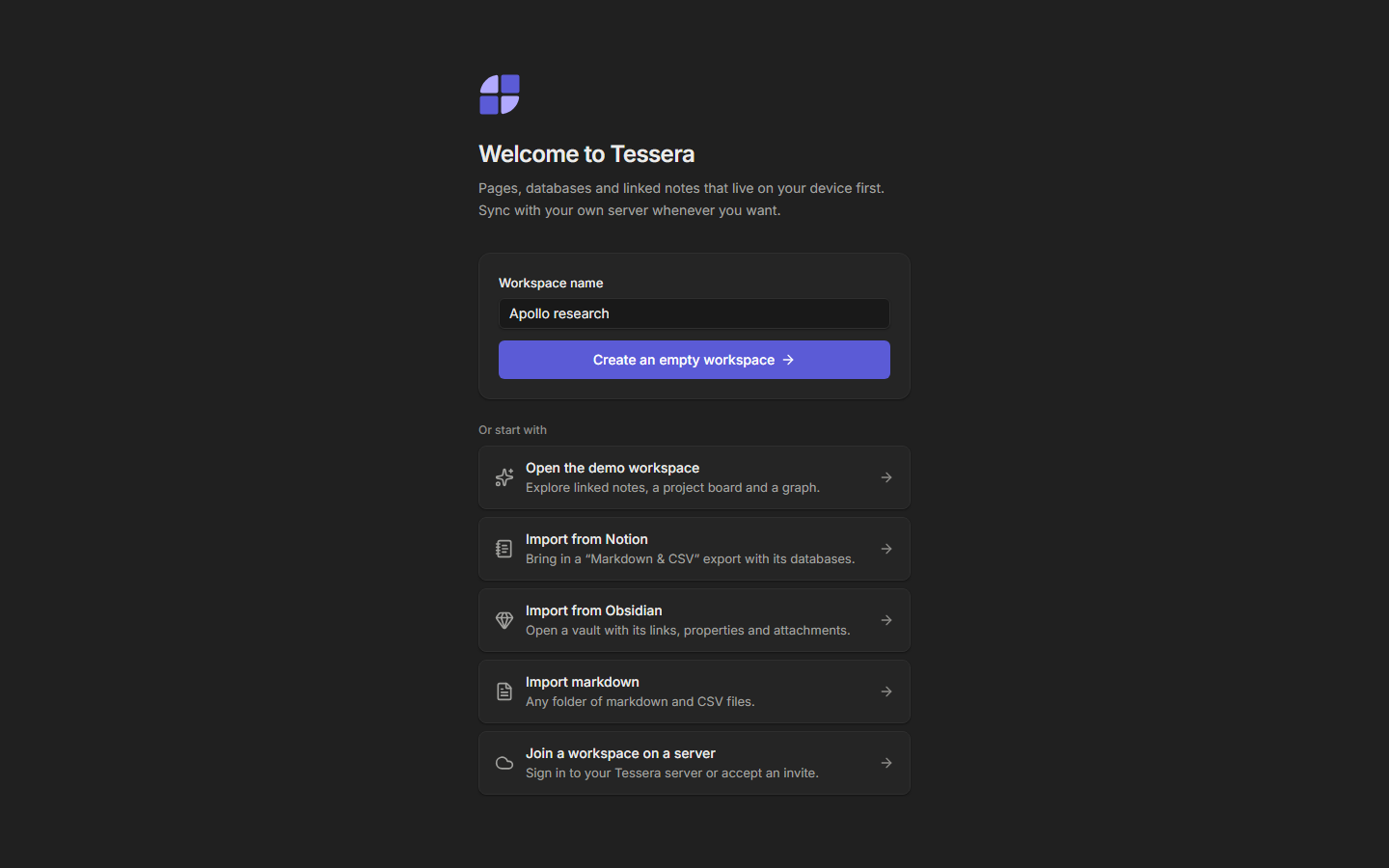
The first time you open Tessera, you choose how to start:
- Create an empty workspace, to start fresh.
- Open the demo workspace, a guided tour with about 40 pages, two databases and a small knowledge garden about space exploration. It's the quickest way to see everything.
- Import from Notion, Import from Obsidian or Import markdown, to bring your notes along. See Import and export.
2. Create a page
Press Mod+Alt+N or click New page in the sidebar. Type a title, then press Enter to start writing.
Mod+N in the browser
Browsers keep Mod+N for a new window, so the web app uses Mod+Alt+N. The desktop app accepts both.
Give the page an icon and a cover: hover over the title and click Add icon or Add cover.
3. Write with blocks
Type / on an empty line to open the slash menu, then type to filter: /todo, /callout, /table, /code. Or use markdown as you type:
| Type | You get |
|---|---|
# ## ### | Headings |
- or * | A bulleted list |
1. | A numbered list |
[] | A to-do |
> | A quote |
``` | A code block |
--- | A divider |
Hover over a block and drag the handle on its left to move it. The editor covers every block.
4. Link two pages
Type [[ and start typing a page title. Pick a page with the arrow keys and Enter, or choose Create page to make a new one and link to it in one go. Links follow renames, so they never break.
Open the linked page and click the Backlinks button in the top bar: your first page is listed there, with the sentence that links to it.
5. Tag it
Type # and a name, like #idea. Clicking a tag searches for every page that has it.
6. Make a database
Type /database to add an inline database, or create a full-page one from the sidebar. Add a Status property of type select, then switch to the Board view and drag cards between columns. See Databases.
7. Find anything
Press Mod+K to open the command palette. Search page titles and text, jump to a page, or run a command. Try tag:idea.
8. Make it yours
- Mod+Shift+L switches between light and dark themes.
- Mod+\ hides the sidebar.
- ? lists every keyboard shortcut. The full list is in Keyboard shortcuts.
- Mod+, opens Settings: your name, cursor color, theme and workspace.
Next
- Sync between devices or invite people: Sync and collaboration.
- Keep a workspace in a folder of your choice: The desktop app.